Simplifying Fusion 360 for Beginners
This Guide covers features and tricks about Fusion 360 that I noticed beginners don't know about.

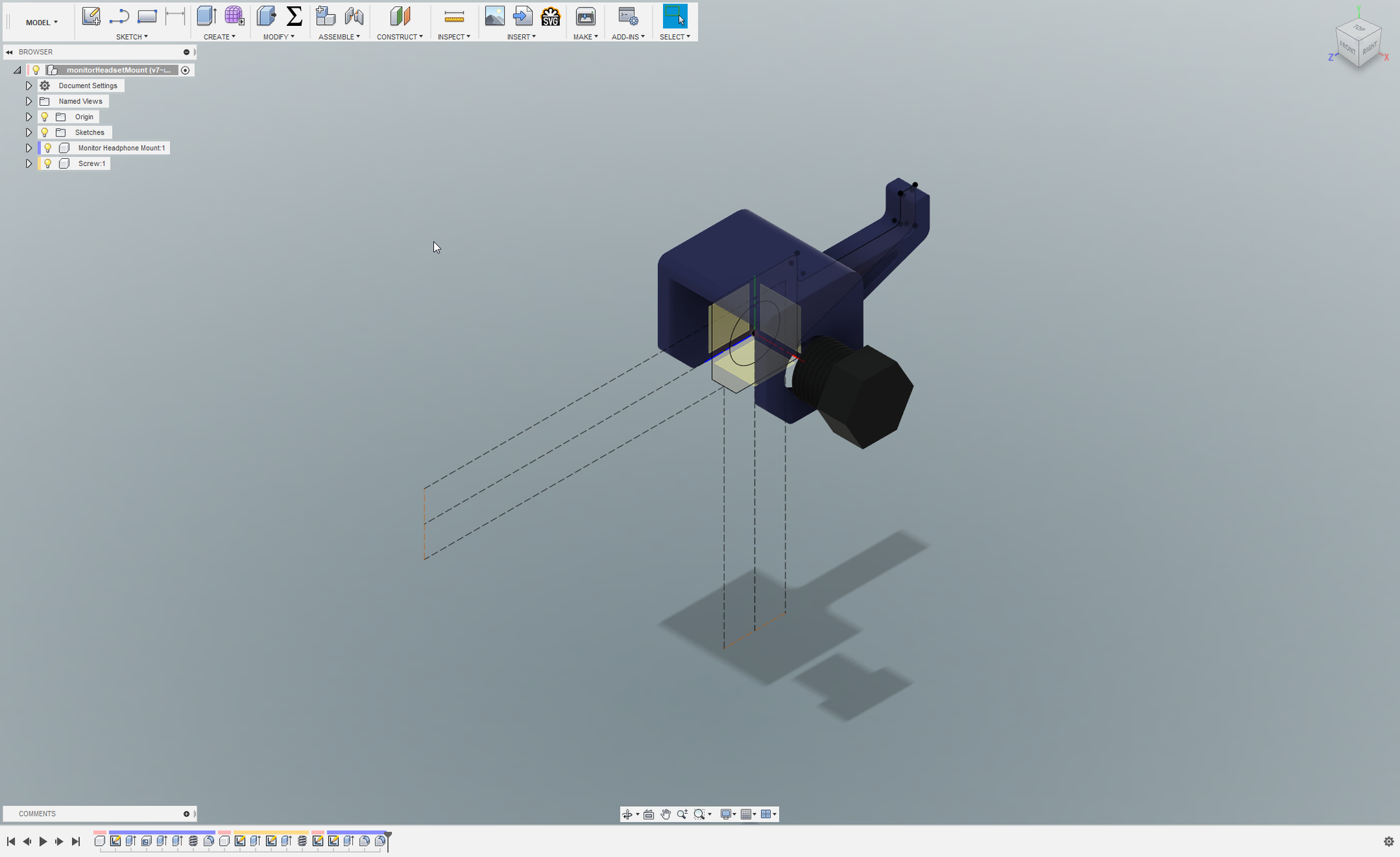
I recently had my friend create a model for me to 3D print and it became immediately clear that while Fusion 360 is widely available, it is not as beginner friendly as most people online make it seem. This guide aims to highlight a few things that are not as straightforward, or even really mentioned at all in the Fusion interface.
Set Z-Axis as Up
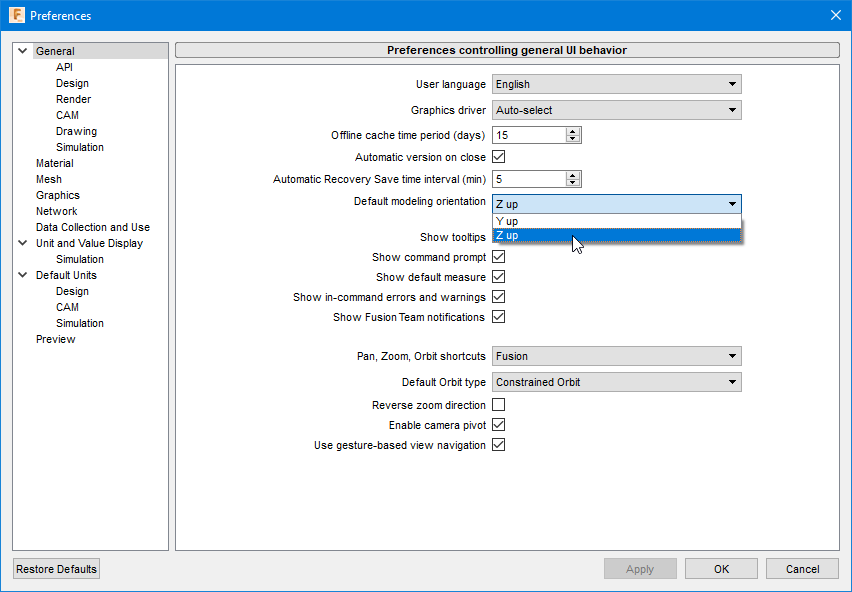
For some odd reason, Fusion defaults to Y-Up, every other program uses Z-Up so if you ever import anything to another program it is going to be sideways. Change this when you get started and save yourself some headache later.
Start Every Project with a New Component
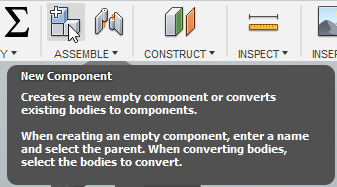
In a quick 5-minute project you can probably get away with just doing an entire project without making a component, but for anything larger making a component will make your life much easier. Keeping the timeline clean is extremely advantageous for multiple reasons. Mainly it allows you to easily go back in time and make changes to each part, instead of scrolling through a massive timeline that's full of every modifier that you've used.
Fusion can be is buggy. The most common issue I come across is when a Modifier doesn't want to update or editing it makes everything after it break. While these issues still occur when your project is broken into components, it is much easier to manage when it does. Most of the time you just have to scrub back in the timeline to where you made a feature and do the feature over again from scratch. For some modifiers, this isn't an issue in the slightest, but sometimes you have a mirror with 15 features selected and it can be a pain to find them all when your timeline is massive.
Use Parameters for Large Projects
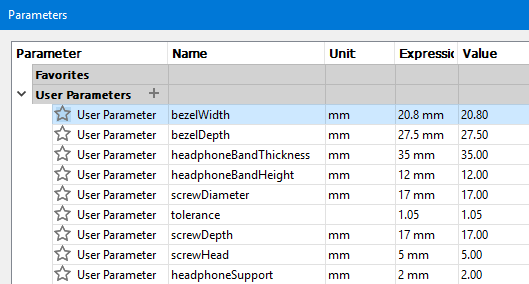
Parameters are like writing comments in Code. In my opinion, there is nothing worse than having to go through an old model trying to make a simple change when you must search for where that change is defined, or even worse if the value is used multiple times so you have to go hunting for it. Parameters make life easier for current you, future you, and any other poor soul that might have to modify your file. You can also leave comments on parameters for added brownie points with future you.
Use the Browser to Hide Unnecessary Items
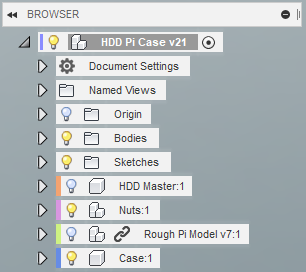
This one is basic; the Browser hides a ton of functionality in it and most of the time it is easier to keep anything that isn't necessary for what you're doing at the moment hidden. If you still have a mess of lines and faces on your screen long pressing the left mouse button can be a tremendous help. It is also good to note that you can unhide old sketches to use them again.
Offset Planes and the Loft Tool
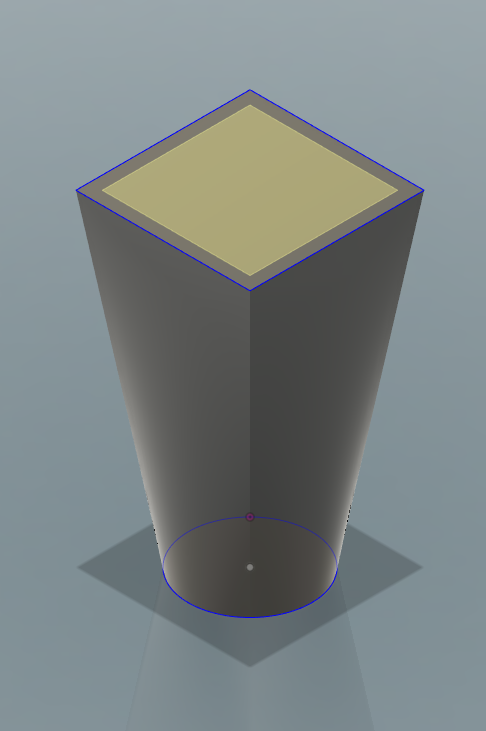
In parametric modeling, it's easy to get stuck in the mindset of just wanting to start everything as cubes and cut them down to the shape you want, but the loft tool wants to do this work for you. You can create two sketches with the geometry you need, have one sketch use the default plane (or define a plane however you want), then the other on an offset plane, click both profiles with the loft tool open and you're off to the races. This is the closest that Fusion will probably ever get to the amazing Generative Design Tools that CATIA has, but this pretty much gets you where you need to go.
McMaster-Carr Integration is awesome
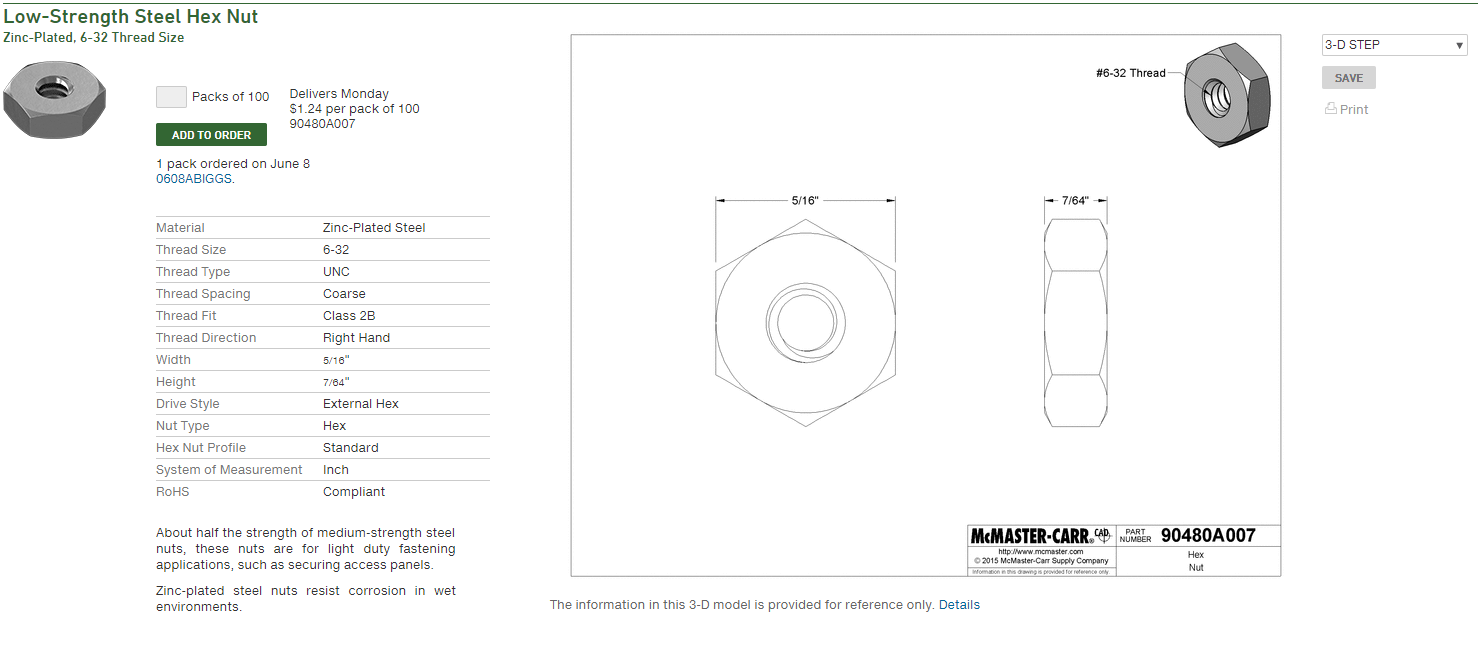
This integration completely takes the guesswork out of making holes for nuts, bolts, or one of the literally thousands of modeled parts. I generally import .step models and they look great, import with the part number as the item name, and are dimensionally correct. This takes literally all the guesswork out of working with these kinds of components